
VS Code Reference
The fuseraft extension’s sidebar views, commands, keybindings, and settings, and what to do when something doesn’t work. For a tour, start with VS Code Extension.
The sidebar
Section titled “The sidebar”The fuseraft icon in the activity bar opens three views.
Chats lists your chats in this workspace, newest first: those started in one of its folders, from the panel or from fuseraft repl in a terminal.
- Click one to resume it. Its last few turns are replayed.
- Names: each chat is named from its first prompt and reply (
fuseraft settings set repl.autoTitle falseturns that off). Rename one with F2, the right-click menu, or/title <name>in the chat. An empty name goes back to the generated one. - Right-click for Rename Chat, Export to Markdown…, and Delete Chat. The export saves your messages and each reply with the tools it used, and leaves out the system prompt, tool output, and code the panel attached.
- The title bar has + (New Chat) and refresh. Its … menu has Update CLI and Configure fuseraft.
Memory shows what the agent has remembered from your chats, grouped by type. Click an entry to open it; right-click to delete one or all of them. See Knowledge Layer.
Skills lists reusable instructions the agent can load when it needs them. Click one to open its SKILL.md; + adds one and right-click removes it. See Skills.
Chats, memories, and skills live in the fuseraft home directory, ~/.fuseraft by default (see fuseraft.homeDir below).
Commands
Section titled “Commands”Most are in the Command Palette under fuseraft:. The ones marked menu act on what you right-clicked, so they’re only in menus.
| Command | What it does |
|---|---|
| Open Chat | Show the open chat, or start one with the configured model |
| New Chat | Start a fresh chat. The one it replaces stays resumable |
| Resume Chat | Pick any saved chat, from any folder, and resume it |
| Rename Chat (menu) | Rename a chat: right-click it in Chats, or press F2 |
| Delete Chat (menu) | Delete a saved chat |
| Export to Markdown… (menu) | Save a chat as a Markdown file |
| Add to Chat | Add the editor’s selection, or its file, to the message you’re writing |
| Add File to Chat (menu) | Attach files or folders: right-click them in the Explorer, or an editor tab |
| Fix with fuseraft (quick fix) | On an error or warning: puts the problem and its surrounding code in the prompt |
| Configure fuseraft | Open the setup screen |
| Install CLI / Update CLI | Install the CLI, or update it to the latest release, in a terminal |
| Remove CLI | Delete the CLI the extension runs, so you can install a fresh one. Your chats, settings and keys are kept |
| Uninstall fuseraft… | Remove the CLI, or the CLI and all its data, then optionally this extension. See Uninstalling |
| Set Binary Path | Point at a fuseraft that isn’t on your PATH |
| Set Home Directory | Use a fuseraft home other than ~/.fuseraft |
| Refresh Chats / Refresh Memory / Refresh Skills | Reload a sidebar view |
| Delete Memory / Delete All Memories | Delete one memory entry, or all of them |
| Add Skill / Remove Skill | Add or remove a skill |
Keybindings
Section titled “Keybindings”| Key | Command | Where |
|---|---|---|
| Ctrl+Shift+Alt+F (Cmd+Shift+Alt+F) | Open the chat, or go back to your file from it | Anywhere |
| Ctrl+Shift+Alt+A (Cmd+Shift+Alt+A) | Add to Chat | The editor |
| F2 | Rename Chat | The Chats view or the chat panel |
Change them in Keyboard Shortcuts by searching for fuseraft. The panel’s own keys are listed in Chat Panel — Keyboard shortcuts.
Settings
Section titled “Settings”| Setting | Default | Description |
|---|---|---|
fuseraft.binaryPath |
fuseraft |
Path to the fuseraft binary. Set an absolute path if it isn’t on your PATH. |
fuseraft.homeDir |
(blank) | The fuseraft home directory; ~/.fuseraft when blank. The same as the CLI’s FUSERAFT_HOME. |
fuseraft.notifications |
true |
Notify you when a reply finishes, or an approval or question is waiting, while you’re away from the panel. |
fuseraft.includeActiveFile |
true |
Name the file you’re working in, and the lines you’ve selected, with each message. |
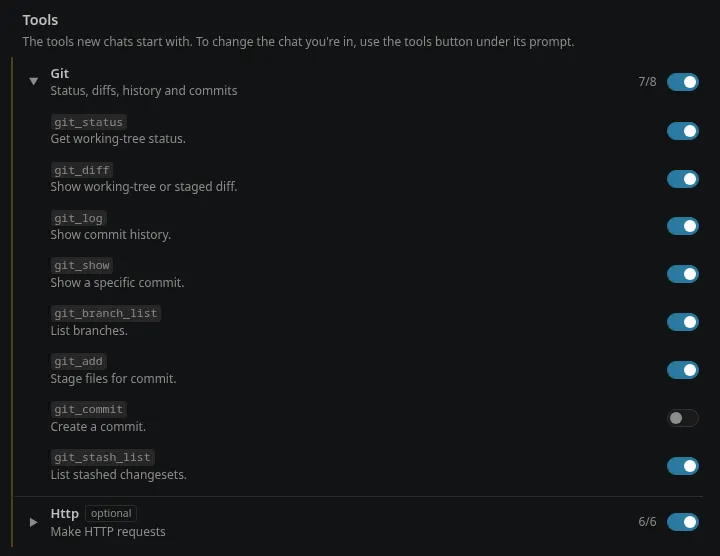
Everything else — model, provider, sampling, REPL behaviour, MCP servers — is the CLI’s configuration, shared with the terminal. fuseraft: Settings edits it in a panel, including a Tools section for the tools new chats start with. See fuseraft settings.
Troubleshooting
Section titled “Troubleshooting”“fuseraft CLI not found.” The notification offers Install, Set Binary Path, and Check again. If you installed it and it still isn’t found, VS Code may have started before the installer updated your PATH: restart VS Code, or set fuseraft.binaryPath to the binary’s full path.
A new chat opens the setup screen. No model is configured yet. Finish setup and choose Start a Chat.
The chat ends straight away with an error and an Open Setup button. The CLI exited before the chat was ready, usually because of a missing API key or a CLI that can’t be started. The error says which. For a key, use Open Setup; for the CLI, fuseraft: Set Binary Path.
“No API key available for model …” The CLI has no key for the server this chat is using. Since CLI 1.17.0, keys are kept per server, so after switching providers or pointing at a new endpoint, save a key for it on the setup screen, or from a terminal:
export FUSERAFT_API_KEY=<your key>fuseraft keychain --set --endpoint <URL>Test connection says “Nothing answered at …”. Nothing is listening at that address. For Ollama, check that it’s running (ollama serve).
Test connection says the endpoint “doesn’t list its models”. Some OpenAI-compatible servers only serve chat completions. Type the model ID and test again.
Save fails with “Failed to store the API key in the OS keychain”. No keychain is available. On Linux, that usually means no Secret Service is running, or secret-tool isn’t installed. Put the key in an environment variable and run fuseraft settings set provider.apiKeyEnvVar <VAR>. See Security — API key storage.
The panel shows no thinking, tool lines, or status line. The CLI is older than the extension expects. Run fuseraft: Update CLI.
A chat is missing from the Chats view. The view only lists chats started in this workspace’s folders. fuseraft: Resume Chat offers every saved chat.
Something else. The fuseraft channel in the Output panel has the extension’s log. Report problems on GitHub.
Release notes
Section titled “Release notes”Each version’s changes are in CHANGELOG.md, which the Marketplace and Open VSX listings also show.