
VS Code Extension
The fuseraft extension puts the REPL in a VS Code panel. You chat with any model — Claude, GPT, Grok, Gemini, Mistral, DeepSeek, a local model through Ollama, or any OpenAI-compatible server — and it reads and edits your code and runs commands, asking first. It’s the same agent as fuseraft repl in a terminal, with the editor wired in: you can hand it a selection or an error, approve its file changes as real diffs, and click the paths in its replies.
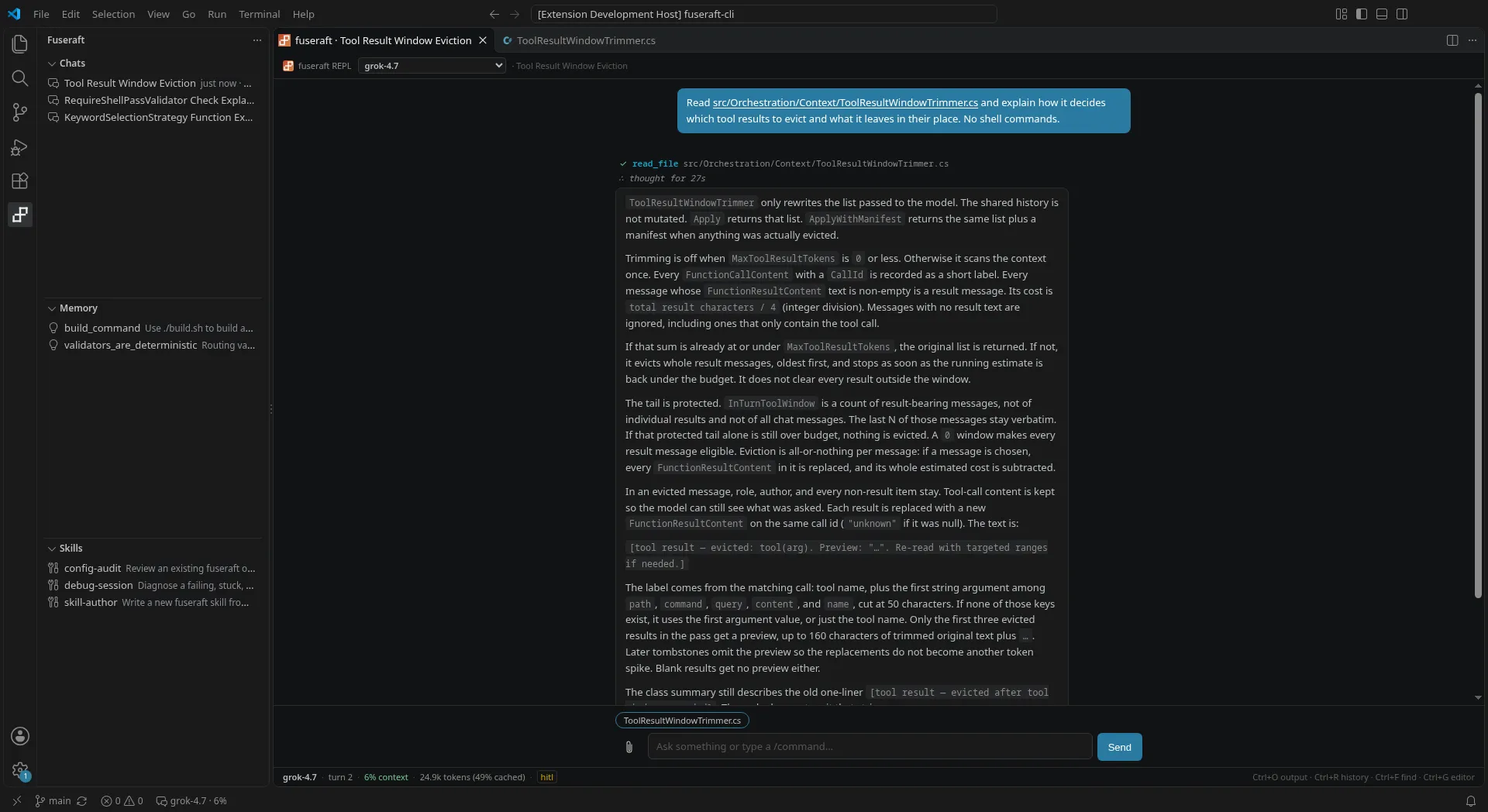
These pages cover:
- Setup & Providers — the setup screen, choosing a provider, and where your API key is kept.
- Chat Panel — following a turn, working with your code, approvals, and keyboard shortcuts.
- Reference — the sidebar, every command and setting, and troubleshooting.
Installing
Section titled “Installing”Install fuseraft from either store. It’s the same extension, published to both at once:
- VS Code Marketplace — for VS Code.
- Open VSX — for VSCodium and other editors that install extensions from Open VSX.
Or from a terminal:
code --install-extension fuseraft.fuseraftRequirements: VS Code 1.85 or later, and the fuseraft CLI, which the extension can install for you. Use a current CLI. An older one still runs, but the panel shows less of each turn, and keeping each API key to its own server needs CLI 1.17.0 or later.
First run
Section titled “First run”- The CLI. The extension runs on the fuseraft CLI. If it isn’t on your
PATH, a notification offers to install it:- Install runs the official installer in a terminal:
curl -fsSL …/install.sh | bashon Linux and macOS,irm …/install.ps1 | iexin PowerShell on Windows. - Set Binary Path points at a
fuseraftthat’s installed somewhere else. - Check again picks it up once it’s installed.
- Install runs the official installer in a terminal:
- Setup. Once the CLI is found and no model is configured yet, the setup screen opens. Pick a provider, paste your API key, choose a model, and Save. See Setup & Providers.
- Chat. Click fuseraft in the status bar, or + in the Chats view of the fuseraft sidebar. A new chat offers a few places to start from what you have open.
You can rerun setup at any time with fuseraft: Configure fuseraft from the Command Palette.
Uninstalling
Section titled “Uninstalling”fuseraft: Uninstall fuseraft…, in the Command Palette or the Chats view’s … menu, offers two choices:
- Remove the CLI. Your chats, settings, skills and saved API keys stay, ready for a reinstall.
- Remove the CLI and all my data. Also deletes your fuseraft home (
~/.fuseraft, or the one Set Home Directory picked) and the API keys and MCP sign-ins fuseraft saved in your OS keychain.
It closes the open chat, then runs fuseraft uninstall in a terminal. The terminal lists everything that will be removed and everything that’s left (project .fuseraft/ folders, for example), and asks before changing anything. Once it’s done, a notification offers to uninstall the extension as well. A chat open in another VS Code window keeps the CLI running, so close those chats first; the terminal names any fuseraft process that’s still running.
Uninstalling only the extension, from the Extensions view, leaves the CLI and your data in place. If the CLI is older than fuseraft uninstall, the command offers to update it first.
Where things are
Section titled “Where things are”- The chat panel opens beside your editor. Each chat runs its own CLI process, started in your workspace folder.
- The fuseraft sidebar (the ƒ icon in the activity bar) has three views: Chats in this workspace, Memory the agent has kept, and Skills it can load. See Reference — The sidebar.
- The status bar item follows the open chat. It shows the model and how full its context is, a spinner while it works, and a highlighted approval needed or question for you when it’s waiting on you. Click it to go to the chat.
How it relates to the CLI
Section titled “How it relates to the CLI”The panel starts fuseraft repl --vscode in your workspace and talks to it over a JSON bridge (see Wire Protocol). So everything the terminal REPL does applies here too:
- Configuration: the same
~/.fuseraft/config(seefuseraft settings), API keys in the same OS keychain, the same/commands, skills, memory, and MCP servers. - Safety: safe by default, as in the terminal. Changes ask first, and the agent is sandboxed to the workspace folder unless
repl.yolois set. See Security & Sandbox. - Chats: saved the same way. A chat started in the panel can be resumed from a terminal with
fuseraft repl --resume <id>, and one started in a terminal in this folder shows up in the Chats view.
Extra folders in a multi-root workspace are passed to the agent with --include, so it can work across all of them.
Multi-agent orchestration (fuseraft run) isn’t part of the extension. Run it from a terminal; see Getting Started.